One problem.
A clearer next step.
Practical, illustrated guides for phones, computers and smart TVs. Start with the safest checks, understand the likely cause and follow manufacturer guidance.
Troubleshooting library.
Choose a problem below. Check what you can safely try before you reset, reinstall or buy anything.
20 practical guides
 PhonesCharging, storage and crashing apps
 ComputersWindows, audio, updates and cooling
 Smart TVsNo picture, Wi-Fi and HDMI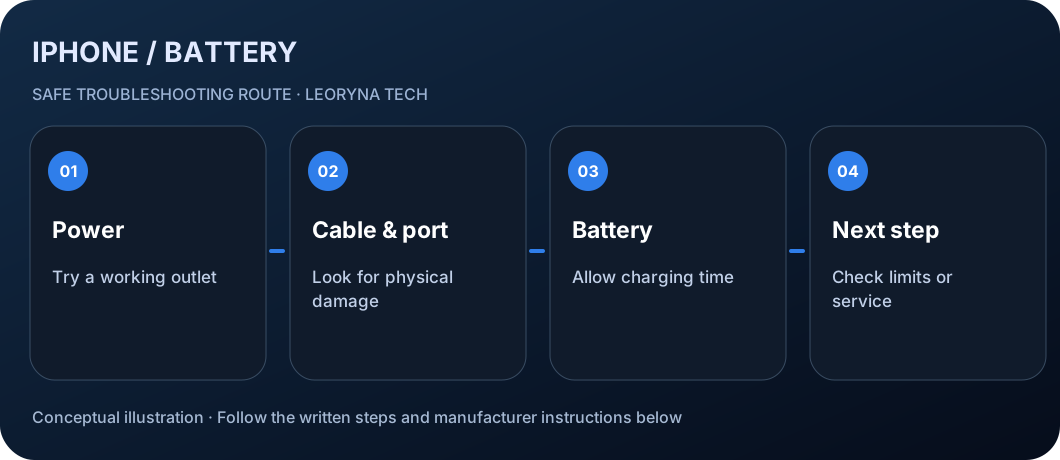
iPhone not charging? Safe cable, port and battery checks
iPhone not charging or stuck at 80%? Check the cable, power source, charging port and charging limits safely before considering repair.
Follow the steps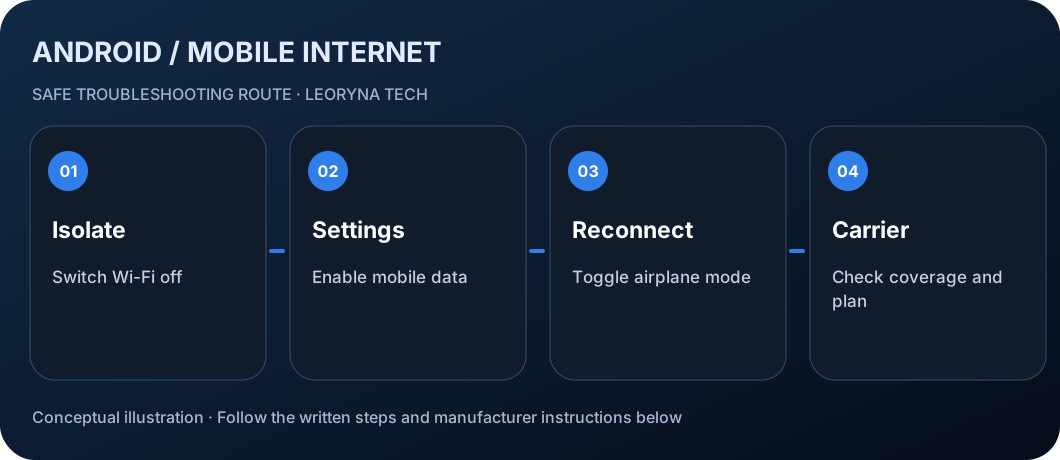
Android mobile data not working? Fix 4G and 5G connection
Android mobile data not working? Safely check signal, airplane mode, mobile data settings, SIM and provider outages before resetting anything.
Follow the steps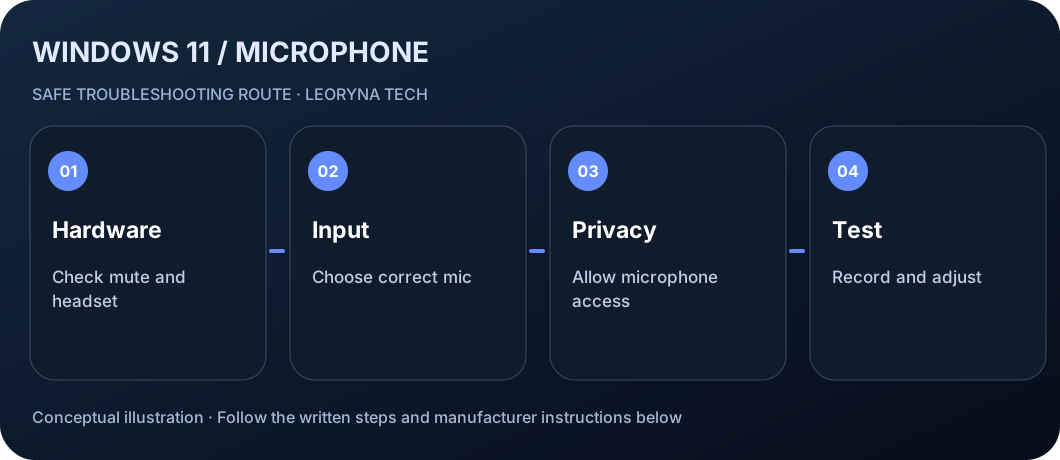
Microphone not working in Windows 11? Check permissions and input
Fix a Windows 11 microphone that is not detected or too quiet: check input selection, privacy permissions, mute controls and driver updates.
Follow the steps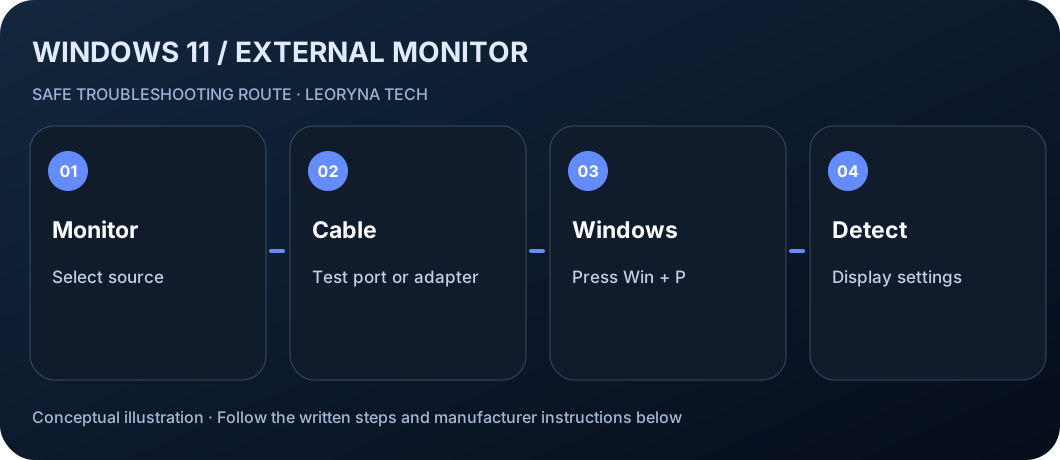
Second monitor not detected in Windows 11? Try these checks
Windows 11 not detecting a second monitor? Check HDMI, DisplayPort, input selection, Windows+P, display detection and docking compatibility.
Follow the steps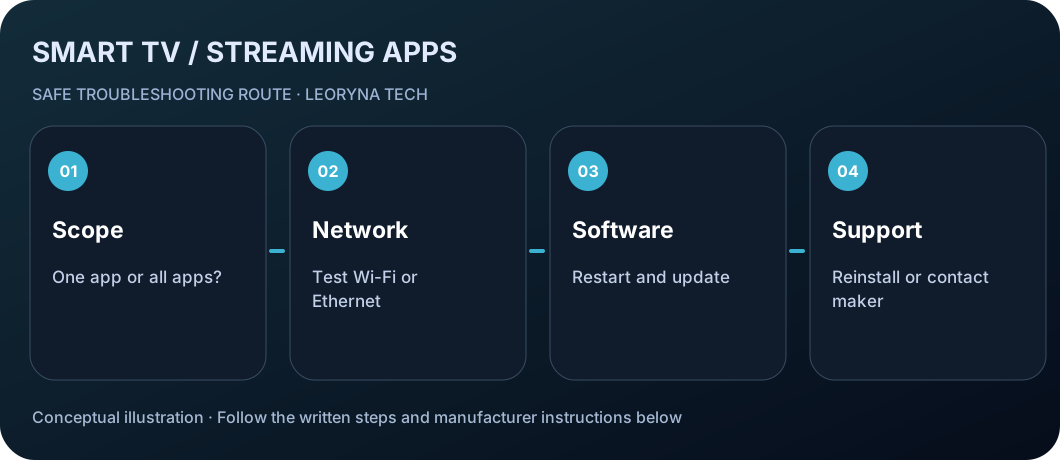
Smart TV apps keep crashing or will not open? Fix streaming apps
Smart TV streaming apps freezing? Safely test the internet connection, restart TV, update the app and check compatibility before resetting.
Follow the steps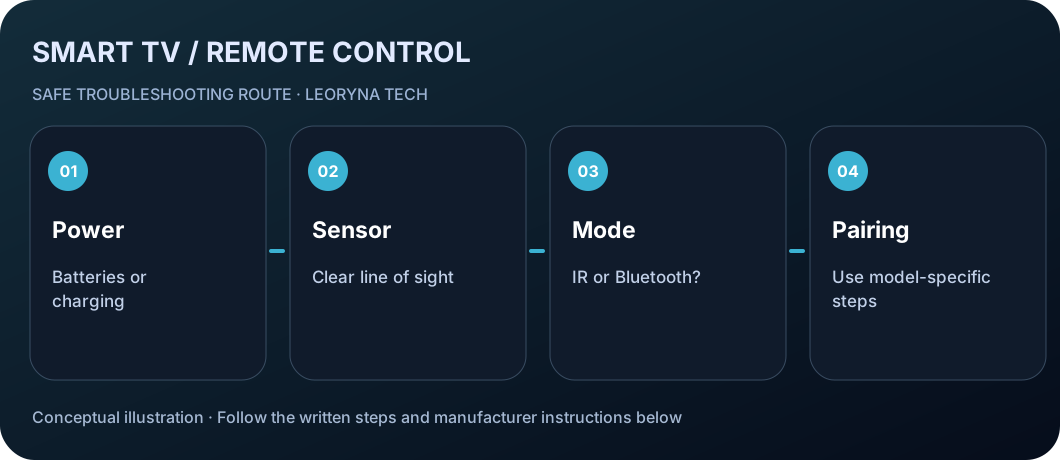
TV remote not working? Check power, sensor and pairing
TV remote not responding? Check batteries or charging, line of sight, IR signal, Bluetooth pairing and TV controls before buying a replacement.
Follow the steps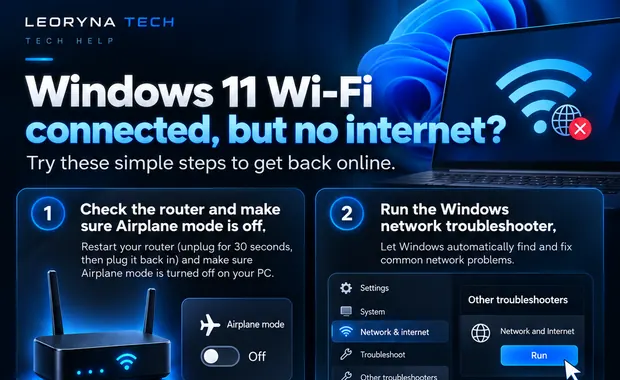
Windows 11 Wi-Fi connected but no internet? Try these fixes.
Find out whether the issue is your laptop, router or connection before resetting network settings.
Follow the steps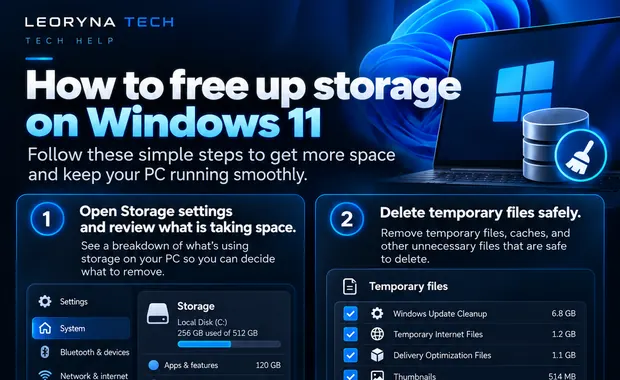
Windows 11 low disk space? Free storage without deleting important files.
Use Storage Sense, cleanup recommendations and careful file review before trying anything destructive.
Follow the steps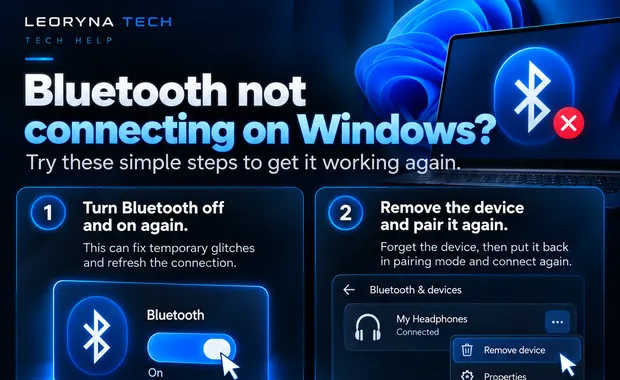
Bluetooth headphones not connecting to Windows 11? Fix pairing issues.
Check pairing mode, output devices, Windows diagnostics and driver updates before replacing anything.
Follow the steps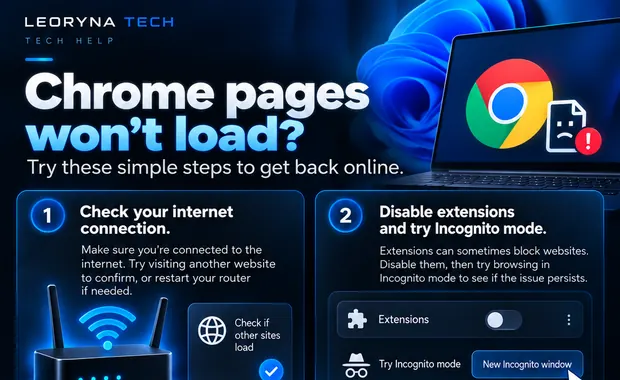
Chrome says “This site can’t be reached”? Troubleshoot safely.
Check the URL, connection, extensions and cached data without weakening your device’s security.
Follow the steps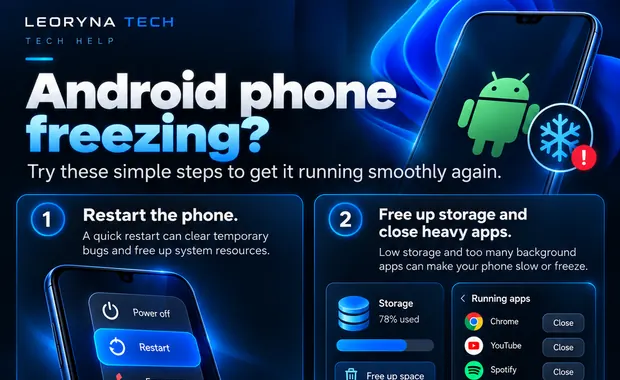
Android phone freezing or running slowly? Try these safe steps.
Learn what to check before resetting your phone: restart, updates, free space and problem apps.
Follow the stepsAndroid phone not charging? 5 safe checks before repair
Check your USB cable, charger, outlet, charging port and battery before paying for a repair.
Follow the steps ↗iPhone storage almost full? Free space without losing photos
Use iPhone Storage recommendations, app offloading and verified backups to reclaim space safely.
Follow the steps ↗Android apps keep crashing? Fix apps that will not open
Restart, update and isolate failing Android apps before clearing storage or reinstalling.
Follow the steps ↗No sound on Windows 11? Fix speakers and headphones
Check the correct output, volume mixer, audio troubleshooter and official drivers safely.
Follow the steps ↗Windows 11 update stuck? What to check safely
Check progress, power, storage and the official Windows Update troubleshooter without risking files.
Follow the steps ↗Laptop overheating or fan too loud? Safe cooling checks
Improve airflow, reduce heavy tasks and recognize when a hot laptop needs service.
Follow the steps ↗TV black screen but sound works? Check picture and inputs
Troubleshoot a dark TV screen with working audio using safe input, cable and menu tests.
Follow the steps ↗Smart TV not connecting to Wi-Fi? Fix network problems
Identify whether your TV, wireless router, password or provider is causing a connection issue.
Follow the steps ↗TV says No Signal on HDMI? Fix input and cable issues
Match the HDMI port, source and device, then test cables before replacing equipment.
Follow the steps ↗Safe troubleshooting comes first.
We link to relevant official support pages and distinguish quick checks from steps that could change settings or remove data. Instructions may differ by device, version or manufacturer.