Start with batteries or charging, remove obstacles, and only follow pairing instructions for your remote model.
Before you start
- Identify whether your remote is a traditional infrared type or a Bluetooth/RF smart remote.
- Do not open or puncture rechargeable batteries, and do not insert loose parts into the remote.
- Remote-button combinations differ by TV manufacturer and model.
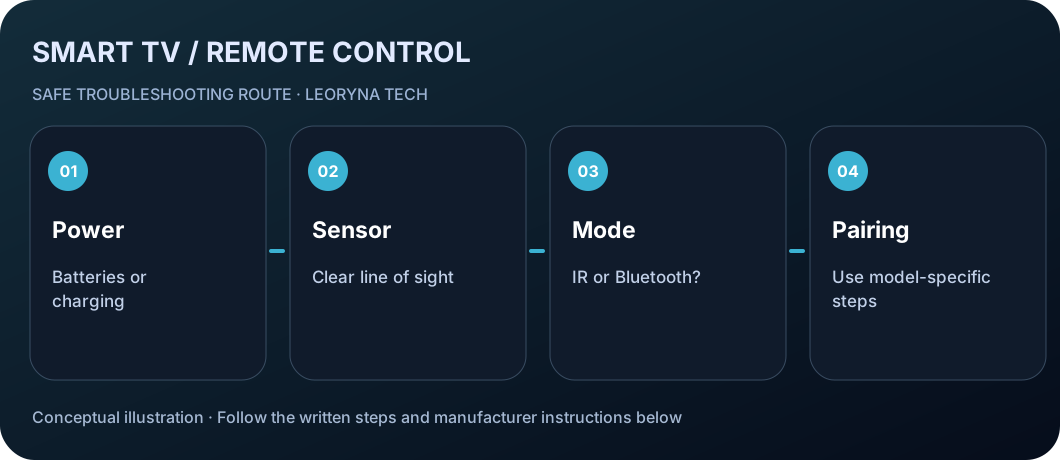
Try these checks in order
Check power first
For battery-powered remotes, insert fresh batteries with the correct polarity. For rechargeable remotes, charge them using the manufacturer-approved method. If a battery is leaking or swollen, stop handling it and seek safe disposal guidance.
Remove obstacles and test the TV buttons
Clear anything blocking the TV’s remote sensor. Test the physical Power or control button on the television if available. This helps separate a remote failure from a TV issue.
Test infrared output only when relevant
If you have a traditional IR remote, a phone camera can sometimes show its infrared emitter blinking while you press a button. This test is not reliable for every phone camera and does not apply to remotes that communicate mainly through Bluetooth or radio.
Reconnect a compatible smart remote
If your TV uses a Bluetooth smart remote, follow the instructions for that exact TV model. For many Samsung Smart Remotes, holding Return and Play/Pause near the TV starts pairing. Do not assume this button combination works on LG, Sony or every Samsung model.
Restart the TV and ask for model-specific service
If the remote still fails after basic checks and the TV’s own buttons work, restart the TV as the manufacturer recommends and consider a compatible replacement. Contact the maker if the remote or TV sensor may be faulty.
Frequently asked questions
Why can the volume work but navigation fail?
Some remotes use different communication paths for different devices or commands. Check pairing and the connected sound system or set-top box.
Will a phone camera test every TV remote?
No. IR emitters may be visible on some cameras, while Bluetooth smart remotes may show nothing. Camera filtering can also hide IR light.
Can I pair a Samsung remote using Return and Play/Pause?
This works on many compatible Samsung Smart Remotes. Consult your TV’s manual if the buttons or procedure differ.
Manufacturer documentation
This original, independent guide draws on official documentation; menus and capabilities may differ by model, region and software version. It does not replace professional service.
Samsung Support — Remote is not working ↗