Learn what to check before resetting your phone: restart, updates, free space and problem apps.
Before you start
- Important photos and files are backed up
- You know the phone’s account credentials
- The phone is not overheating or physically damaged
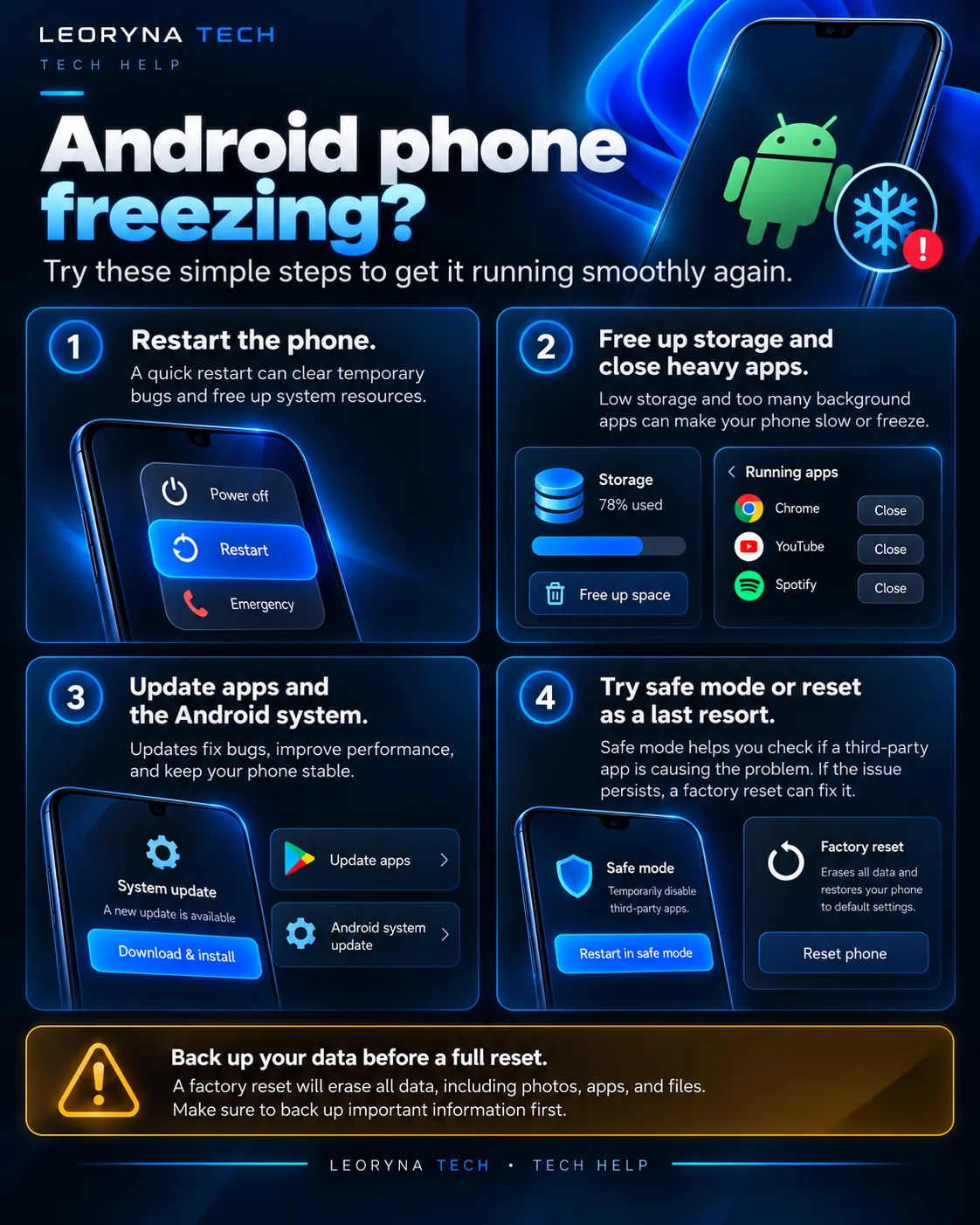 Tap to enlarge ↗
Try these fixes in order
Start with a normal restart
If the phone still responds, restart it normally. If it is completely frozen, your manufacturer may document a force-restart key sequence. Google describes holding the power button for around 60 seconds for some Android devices with frozen screens, but the method varies by model.
Look at remaining storage
Open Settings → Storage or the corresponding menu on your device. Android can become unstable when storage is very low. Review large videos, downloads and apps you no longer use.
Back up important files before deleting them. A device manufacturer may use slightly different menu labels.
Update Android and your apps
Check Settings → System → Software update (or your manufacturer’s equivalent). In the Play Store, open Manage apps & device to find available app updates. Restart the phone after updates when instructed.
Identify a troublesome app
If freezing began after installing an app, consider removing that app. For persistent issues, Android’s Safe mode can help test whether downloaded apps are involved. The way to enter Safe mode varies by manufacturer.
When Safe mode improves performance, recheck recently installed apps rather than erasing the entire phone immediately.
Factory reset is the last step
A factory reset deletes locally stored personal data and installed apps. Only consider it after creating and verifying a backup, reviewing your account sign-in, and reading the official instructions for your specific device.
If the phone remains unusually hot, the battery swells or there is physical damage, stop troubleshooting and contact qualified service support.
Frequently asked questions
Does a factory reset fix every Android issue?
No. It may help with software problems, but hardware damage, faulty batteries or network problems can remain.
Why is the phone slow when storage is nearly full?
Low free space can affect app operation, updates and temporary files. Google recommends checking storage as part of diagnosing freezing.
Official reference
This independent guide is informed by published manufacturer instructions. Menus may change with updates; consult the source for device-specific guidance.
Android Help: Fix a device that freezes or won’t respond ↗