Restart, update and isolate failing Android apps before clearing storage or reinstalling.
Before you start
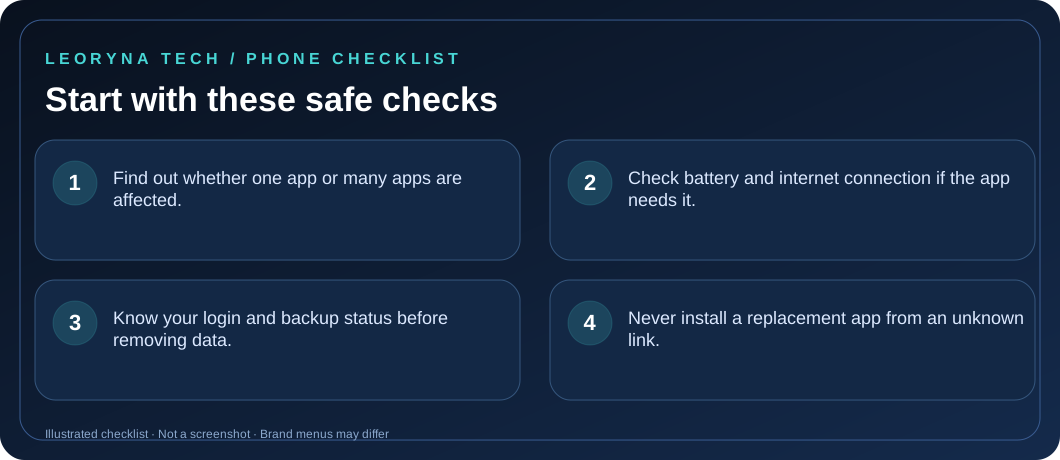
- Find out whether one app or many apps are affected.
- Check battery and internet connection if the app needs it.
- Know your login and backup status before removing data.
- Never install a replacement app from an unknown link.
Try these fixes in order
Restart the phone and check the connection
Close the failing app and restart the phone. If the app uses online services, open a different website or app to confirm the internet is working. A temporary service outage may be the real cause.
Update the app and Android
Open Google Play Store → profile icon → Manage apps & device to check app updates. Then use your phone’s Settings app to check system updates. Menu names vary by brand.
Force stop only the affected app
Open Settings → Apps, select the affected app and choose Force stop if offered. Then open it again. If all other apps work, focus on that app rather than resetting the whole device.
Clear cache before considering app data
Some phones let you clear an app’s cache without removing account information. Clearing app storage/data is different: it can remove local accounts, preferences and files. Confirm what is backed up before choosing it.
Reinstall or contact the developer if needed
If the issue remains confined to one app, read its official support instructions and consider reinstalling only if your data is backed up. If several unrelated apps crash or the phone becomes unstable, use the device maker’s diagnostics.
Frequently asked questions
Will clearing cache delete my account?
Clearing cached files generally differs from clearing app data; the exact behavior depends on the device and app. Check the option label carefully.
Should I factory reset the phone?
Not as an early troubleshooting step. A reset is disruptive and requires a verified backup.
Official manufacturer reference
Based on publicly available support guidance. Steps and menus can vary by model, system version and country. This article is independent editorial guidance, not an authorized repair service.
Google Android Help — fix an app that is not working ↗