Test the monitor input and cable, then check Windows projection mode before changing display drivers.
Before you start
- Know which port your computer and monitor actually use: HDMI, DisplayPort or USB-C video.
- Keep the display power connected and use the monitor’s own Input/Source menu.
- Not all USB-C ports support video output; check the computer specification.
Try these checks in order
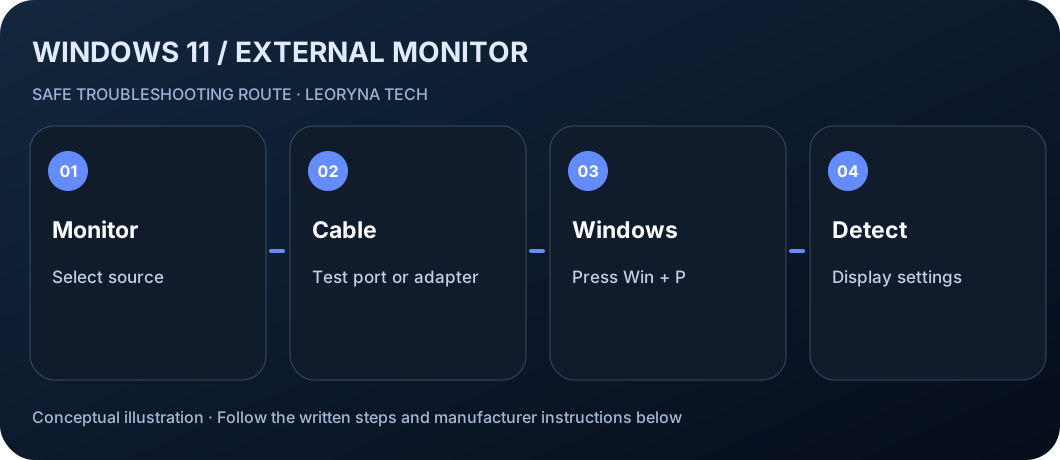
Confirm the monitor is on the right input
Use the monitor controls to select the HDMI or DisplayPort input where the cable is plugged in. Verify that it can show its own menu or logo.
Inspect cable, dock and adapter
Disconnect and reconnect the video cable. If possible, try a known-working cable, another computer or a direct connection without the docking station. Do not force mismatched connectors.
Choose a projection mode
Press Windows + P, then select Extend (or Duplicate to test). Choosing PC screen only intentionally disables the external display.
Open the Display settings
Go to Start → Settings → System → Display. Under Multiple displays, look for Detect if the monitor is not shown. Rearrange the display boxes once the screen appears.
Check capability and official updates
Check if the computer supports external displays over that port and whether the dock supports the resolution. Restart the PC and look for Windows Update or manufacturer graphics updates. If the setup worked before an update, Microsoft documents additional rollback steps.
Frequently asked questions
Does every USB-C port support a monitor?
No. Some USB-C ports handle data and charging but lack a video mode. Check device documentation.
Why does the second monitor show No Signal?
The display might be on the wrong input or the computer might not be sending video through that cable or port.
Can an HDMI splitter extend to two desktops?
A simple splitter duplicates one video signal. Independent extended displays need separate supported video outputs.
Manufacturer documentation
This original, independent guide draws on official documentation; menus and capabilities may differ by model, region and software version. It does not replace professional service.
Microsoft Support — Troubleshoot external monitor connections ↗