Find out whether the issue is your laptop, router or connection before resetting network settings.
Before you start
- Wi-Fi is on and Airplane mode is off
- Another device can connect using the same network
- You know your Wi-Fi password before forgetting the network
 Tap to enlarge ↗
Try these fixes in order
Test the network before changing Windows
Connect a second device to the same Wi-Fi network, then open a known website. If both devices fail, look at the router or your internet provider first. If the other device works, continue troubleshooting your Windows computer.
Also test a different website to rule out a temporary outage of one service. Move closer to the router if the Wi-Fi signal is weak.
Reconnect to your Wi-Fi network
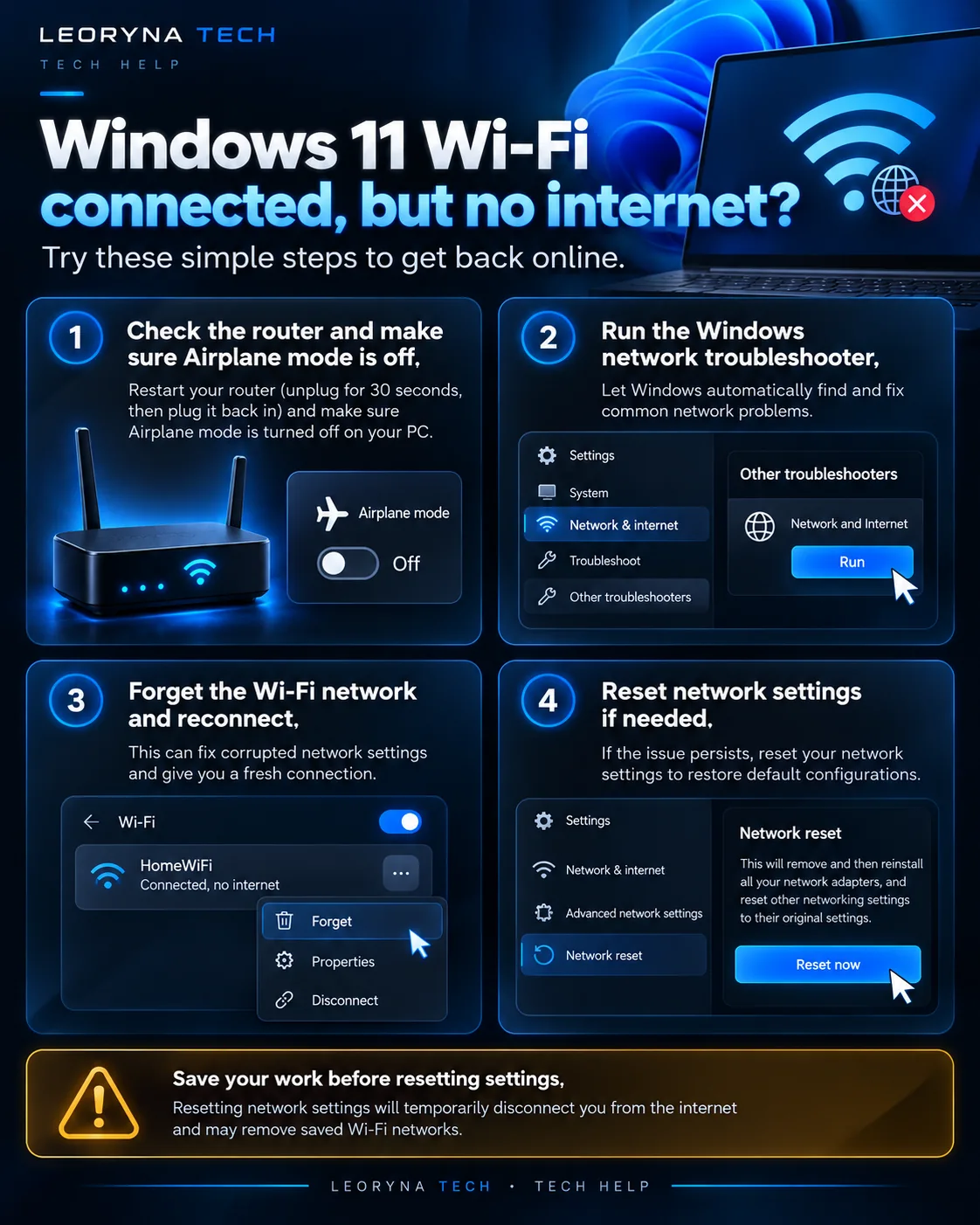
Check Settings → Network & internet and make sure Wi-Fi is enabled and Airplane mode is off. Disconnect and reconnect to your usual network. If that fails, go to Wi-Fi → Manage known networks, choose your network, and select Forget. Reconnect using the correct password.
Important: Forgetting a network removes its saved connection information. Confirm you know the password first.
Restart your router and PC
If you control the home router, unplug its power, wait about 30 seconds and reconnect it. Allow time for the connection lights to stabilize. This temporarily disconnects other people using the network. Restart your PC after checking the router.
If you are on a public, workplace or campus network, ask its administrator instead of restarting shared equipment.
Run the Windows network troubleshooter
On Windows 11, open the Get Help app and search for the network or internet connectivity troubleshooter. Let Windows run its diagnostics. Also check Settings → Windows Update for available updates, then restart if required.
Use network reset only as a last resort
If all safer steps have failed, Windows provides Settings → Network & internet → Advanced network settings → Network reset. This removes and reinstalls network adapters and can reset VPN or specialized network configurations.
Do not start with network reset: record your VPN, business-network and Wi-Fi settings first. If you rely on managed software, speak to IT support.
Frequently asked questions
Why does Windows say connected without internet?
The Wi-Fi connection to the local router can succeed even when internet access is unavailable. A provider outage, router problem or local PC configuration may be responsible.
Should I change my DNS right away?
Not initially. First check whether other devices work and try the built-in diagnostics. Changing DNS can create new issues on managed networks.
Official reference
This independent guide is informed by published manufacturer instructions. Menus may change with updates; consult the source for device-specific guidance.
Microsoft Support: Fix Wi-Fi connection issues ↗