Check progress, power, storage and the official Windows Update troubleshooter without risking files.
Before you start
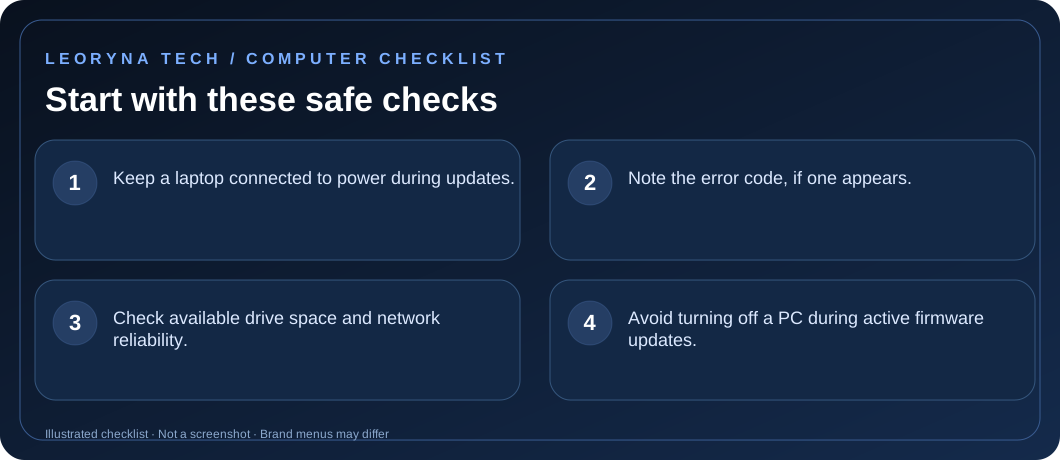
- Keep a laptop connected to power during updates.
- Note the error code, if one appears.
- Check available drive space and network reliability.
- Avoid turning off a PC during active firmware updates.
Try these fixes in order
Check whether it is truly stalled
Allow adequate time, especially on a slower computer. If the progress percentage remains unchanged, watch for disk activity or follow the on-screen instructions. Do not repeatedly interrupt a firmware/BIOS update.
Confirm power, connectivity and storage
For normal Windows updates, keep the PC plugged in, test your internet connection and verify that the system drive has free space. If storage is low, use Windows Storage recommendations rather than deleting system files.
Use Get Help for Windows Update
Open the Get Help app and search for the Windows Update troubleshooter. Alternatively, depending on your version, open Settings → System → Troubleshoot → Other troubleshooters → Windows Update.
Restart only when Windows permits it
If Windows shows a restart-required message, save work and restart normally. Do not unplug the computer during an update installation. Check Windows Update again and note any error code.
Use official recovery guidance for repeating failures
If the same error returns or the PC cannot boot, record the message and consult Microsoft’s update troubleshooting or the PC maker. Back up important files before recovery or reset procedures.
Frequently asked questions
Should I force power off an updating computer?
Avoid it, especially when the screen mentions firmware or BIOS. Use the maker’s official recovery instructions if the system is genuinely unresponsive.
Will the troubleshooter remove my files?
The standard Windows Update troubleshooter is intended to diagnose update issues; review its prompts and keep a backup before advanced recovery.
Official manufacturer reference
Based on publicly available support guidance. Steps and menus can vary by model, system version and country. This article is independent editorial guidance, not an authorized repair service.
Microsoft Support — Windows Update troubleshooter ↗