Check the microphone mute button, Windows Input device and privacy permissions before reinstalling software.
Before you start
- Check whether your microphone or headset has a physical mute control.
- If your headset uses USB or Bluetooth, reconnect it and confirm the device appears in Windows.
- Avoid third-party driver download websites; use Windows Update or the device manufacturer.
Try these checks in order
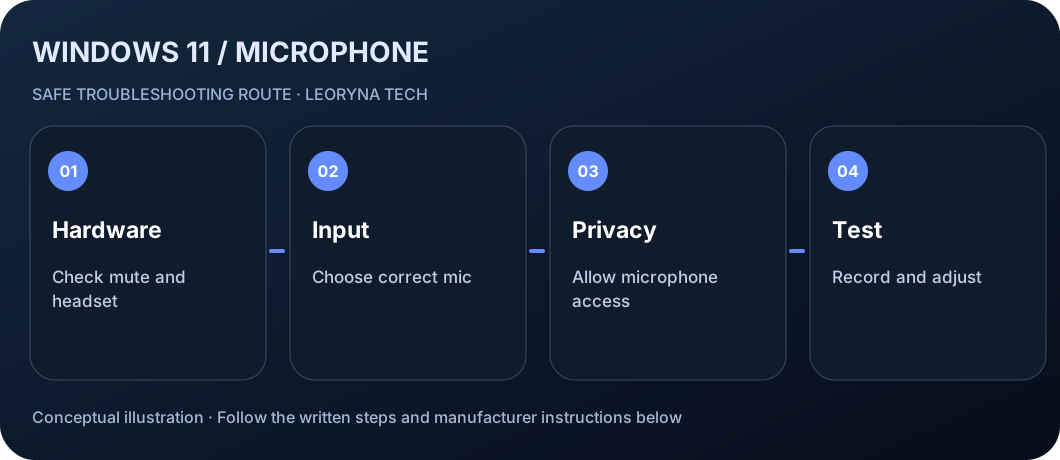
Check mute and physical connections
Unmute your headset, app and external microphone. Verify USB devices are connected and Bluetooth headsets are paired. On laptops, look for a microphone-disable keyboard key.
Choose the correct input
Open Start → Settings → System → Sound. Under Input select the microphone you intend to use. If several devices are present, the camera or Bluetooth headset may have been selected instead.
Turn on app permissions
Go to Settings → Privacy & security → Microphone. Turn on Microphone access and Let apps access your microphone. Enable desktop-app access for desktop meeting software where needed.
Record a test in Windows
In Settings → System → Sound, choose the device under Input and run the microphone test. Speak normally, then listen to the sample if available. Adjust input volume only if the recording is too quiet.
Update through trusted channels
Restart the computer and check Windows Update. If the microphone is still missing, consult the laptop or microphone manufacturer for device-specific drivers. Avoid deleting driver packages without a recovery plan.
Frequently asked questions
Why can Zoom hear me but a browser cannot?
Different apps may use separate input devices or require individual permissions. Check the browser site permission and its selected microphone.
Can a Bluetooth headset connect but have no microphone input?
Yes. The headset may be connected for audio output while another input device is selected. Review Windows Sound → Input.
Should I install a driver booster?
No. Use Windows Update or official manufacturer drivers to reduce the risk of incorrect or unwanted software.
Manufacturer documentation
This original, independent guide draws on official documentation; menus and capabilities may differ by model, region and software version. It does not replace professional service.
Microsoft Support — Fix microphone problems ↗