Check your USB cable, charger, outlet, charging port and battery before paying for a repair.
Before you start
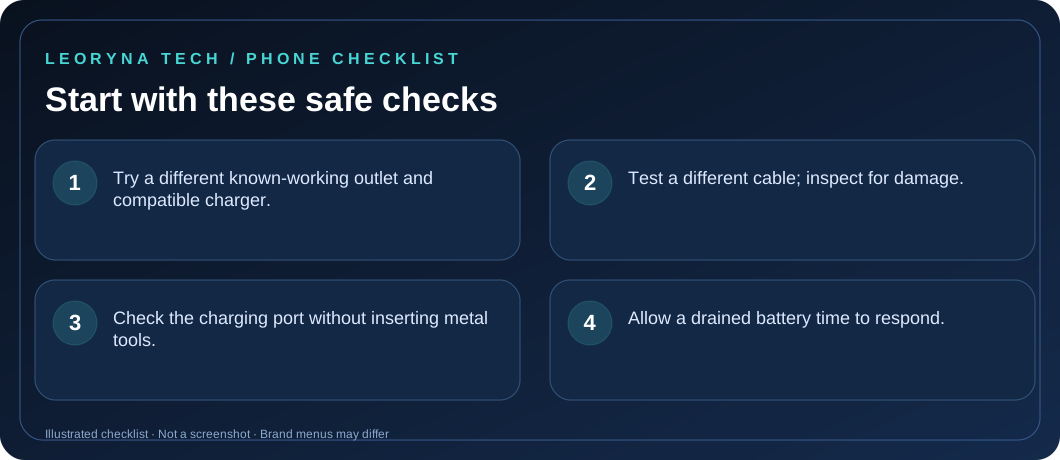
- Try a different known-working outlet and compatible charger.
- Test a different cable; inspect for damage.
- Check the charging port without inserting metal tools.
- Allow a drained battery time to respond.
Try these fixes in order
Check the outlet and charging accessories
Connect another device to the same outlet and power adapter if it is compatible. Try a trusted cable and charger rated for your phone. Frayed insulation, bent connectors or an unusually hot charger are reasons to stop using that accessory, not to keep experimenting.
Check the connection without damaging the port
Unplug the charger and inspect the port in good light. Look for lint, moisture, damage or a connector that will not sit securely. Do not put pins, blades or liquids into the charging port. If you suspect moisture, follow your manufacturer’s drying guidance and do not force charging.
Give a deeply discharged battery time
Use a working charger and allow the device to charge for at least 30 minutes. The screen may stay blank initially when the battery has been deeply discharged. On some models a small light or battery icon appears; on others there is no indicator.
Restart only when safe to do so
If the phone responds, perform a normal restart. When it does not, consult the manufacturer’s model-specific power-button instructions; button combinations vary. Do not perform a factory reset to fix a suspected charging connector problem.
Know when to stop and request service
If the device or battery is swollen, smells unusual, smokes or becomes excessively hot, disconnect it if safe and seek qualified repair help. If multiple working accessories do not charge the phone, contact the manufacturer or an authorized service provider.
Frequently asked questions
Can I charge a wet phone?
Do not charge a phone when the port is wet. Follow its manufacturer’s drying instructions and avoid heat guns or inserting materials into the port.
Do I need to replace the battery?
Not necessarily. A faulty cable, charger, outlet or connector can look like a battery problem. Test the simple causes first.
Official manufacturer reference
Based on publicly available support guidance. Steps and menus can vary by model, system version and country. This article is independent editorial guidance, not an authorized repair service.
Google Android Help — device will not charge or turn on ↗