Turn off Wi-Fi briefly, verify mobile data is enabled and test signal before contacting your carrier.

Before you start
- Check whether other people on the same network have mobile service.
- Know whether your mobile plan includes active data and the device has an enabled SIM or eSIM.
- Do not delete an eSIM, change APN values randomly or factory-reset your phone as a first step.
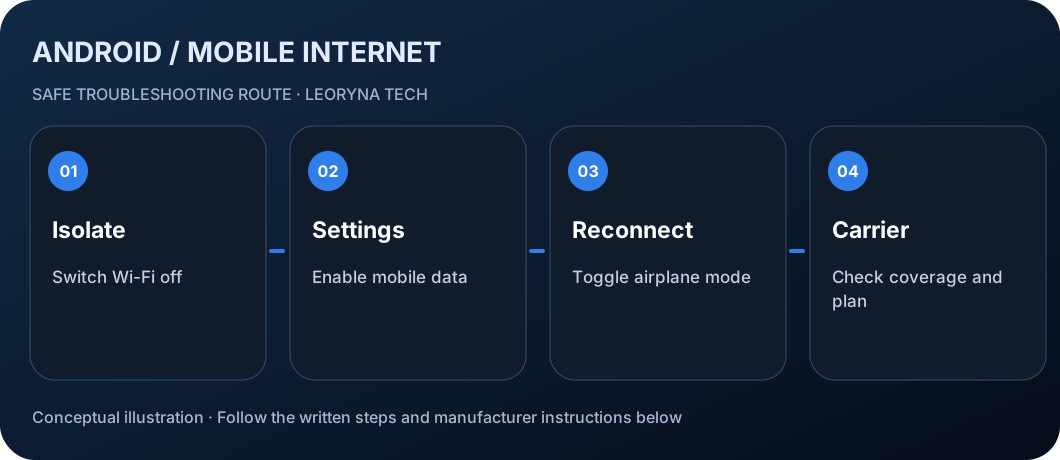
Try these checks in order
Test mobile data without Wi-Fi
Turn Wi-Fi off temporarily and open a trusted website in your browser. This verifies that cellular data, rather than your home internet connection, is being tested.
Check Mobile data settings
Open Settings → Network & internet (or Connections) → SIMs / Mobile network and confirm Mobile data is enabled for the correct SIM. Names vary by phone. If you have two SIMs, check the selected data SIM.
Toggle airplane mode, then restart
Enable Airplane mode for about 10 seconds and turn it off. Allow the phone to reconnect. If there is no change, perform a normal restart and test again.
Look at coverage and your account
Check for 4G, LTE or 5G next to the signal indicator. Move to an area with better reception if safe. Verify that data has not been paused, limited or used up in your carrier plan.
Ask the carrier before advanced resets
If calls or mobile data fail in several locations or your SIM is not recognized, contact your network operator. Ask about outages, activation and account restrictions. Only consider network resets after learning what saved Wi-Fi/Bluetooth settings may be lost.
Frequently asked questions
Why does Wi-Fi work but mobile data not work?
That points toward cellular signal, plan, mobile data settings or a carrier outage rather than your home Wi-Fi.
Will airplane mode delete my photos?
No. A short airplane-mode toggle turns radios off and on; it does not erase stored photos or apps.
Should I delete my eSIM to reconnect?
No. Deleting an eSIM can require carrier reactivation. Contact your carrier before making eSIM changes.
Manufacturer documentation
This original, independent guide draws on official documentation; menus and capabilities may differ by model, region and software version. It does not replace professional service.
Google Android Help — Fix internet connection problems ↗