Start with a working power source and cable. Check for charging limits and heat before attempting anything invasive.
Before you start
- Disconnect immediately if a cable is frayed, the connector is burnt or the phone is extremely hot.
- Have a compatible, known-working cable and power adapter available.
- Do not insert needles, metal tools or liquids into the charging port.
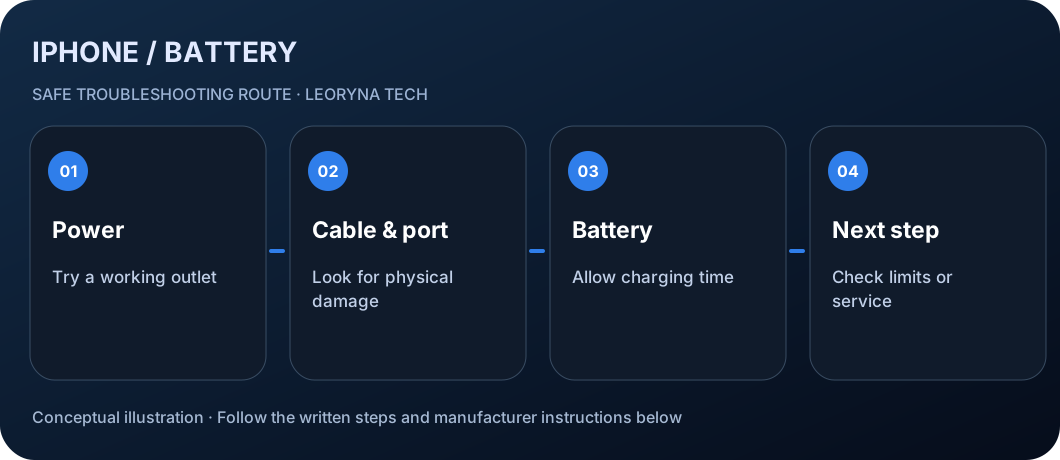
Try these checks in order
Confirm the power source
Connect a known-working power adapter directly to a wall outlet. Check that its cable and plugs fit firmly. Try a different outlet before blaming the phone.
Test the cable and examine the port
Look for damage to the cable and connector; never continue with a damaged charger. Inspect the port in good light. If debris, moisture, bent pins or corrosion are present, avoid probing inside and follow Apple guidance or seek service.
Allow the battery to recover
Leave the phone on a compatible charger for about 30 minutes. A deeply drained battery can take time to display an image. If it still will not start, consult the model-specific force-restart steps from Apple; do not erase the device.
Understand charging at 80%
A charging limit, Optimized Battery Charging or high temperature can intentionally slow or stop charging near 80%. On supported iPhone models review Settings → Battery → Charging (names vary by iOS version). Let a warm phone cool naturally.
Stop if the basics fail
If the phone will not charge using multiple working accessories, has a loose or damaged port or the battery appears swollen, contact Apple Support or an authorized repair provider. Avoid opening the battery.
Frequently asked questions
Why is my iPhone stuck at 80%?
Charging limits, Optimized Battery Charging, or temperature protection may be responsible. Check Battery settings and allow the phone to cool before assuming hardware failure.
Is wireless charging a useful test?
Only if your iPhone supports it and the charger is compatible. It can help isolate a wired connection issue, but does not prove that the battery or device is safe.
Should I reset my iPhone?
A factory reset is not a sensible first step for a charging fault and can cause data loss. Begin with a cable, power and temperature check.
Manufacturer documentation
This original, independent guide draws on official documentation; menus and capabilities may differ by model, region and software version. It does not replace professional service.
Apple Support — If your iPhone or iPod touch won’t charge ↗