Improve airflow, reduce heavy tasks and recognize when a hot laptop needs service.
Before you start
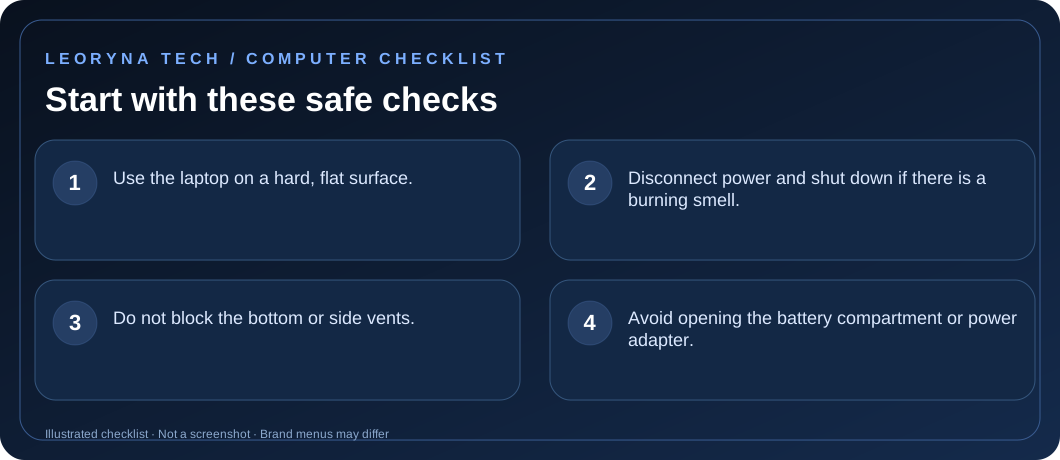
- Use the laptop on a hard, flat surface.
- Disconnect power and shut down if there is a burning smell.
- Do not block the bottom or side vents.
- Avoid opening the battery compartment or power adapter.
Try these fixes in order
Give the vents room to breathe
Move the laptop off cushions, blankets or your lap and place it on a flat, stable surface. Keep books, fabric and other objects away from exhaust and intake openings.
Identify resource-heavy applications
Open Task Manager and review CPU usage. Close apps you no longer need, especially if several demanding tasks are running simultaneously. Do not force-stop unknown Windows system processes.
Restart and allow time to cool
Save your work, shut down and disconnect it from power if unusually hot. Let it cool in a dry, ventilated place at room temperature. Do not use a refrigerator, ice pack or water.
Inspect vents and follow the maker’s cleaning guidance
Look for visible dust buildup around vents. Use only the manufacturer’s recommended exterior cleaning method for your exact model, with power disconnected. Do not push tools into the fan or open the device if you are not qualified.
Get service for repeated heat or shutdowns
If the fan makes grinding noises, the battery is swollen, or thermal shutdowns continue despite clear airflow, stop using the device and contact the manufacturer or an authorized technician. Firmware updates should be performed only through official instructions.
Frequently asked questions
Is a loud laptop fan always a fault?
No. Fans often speed up during gaming, video processing or updates. Persistent loud noise at idle deserves investigation.
Can I use my laptop on a bed?
Soft fabric can obstruct cooling vents and increase heat. A hard, level surface is safer.
Official manufacturer reference
Based on publicly available support guidance. Steps and menus can vary by model, system version and country. This article is independent editorial guidance, not an authorized repair service.
HP Support — reduce heat inside the laptop ↗