Use Storage Sense, cleanup recommendations and careful file review before trying anything destructive.
Before you start
- Save copies of irreplaceable documents and photos
- Check which drive is running low on space
- Do not delete system folders manually
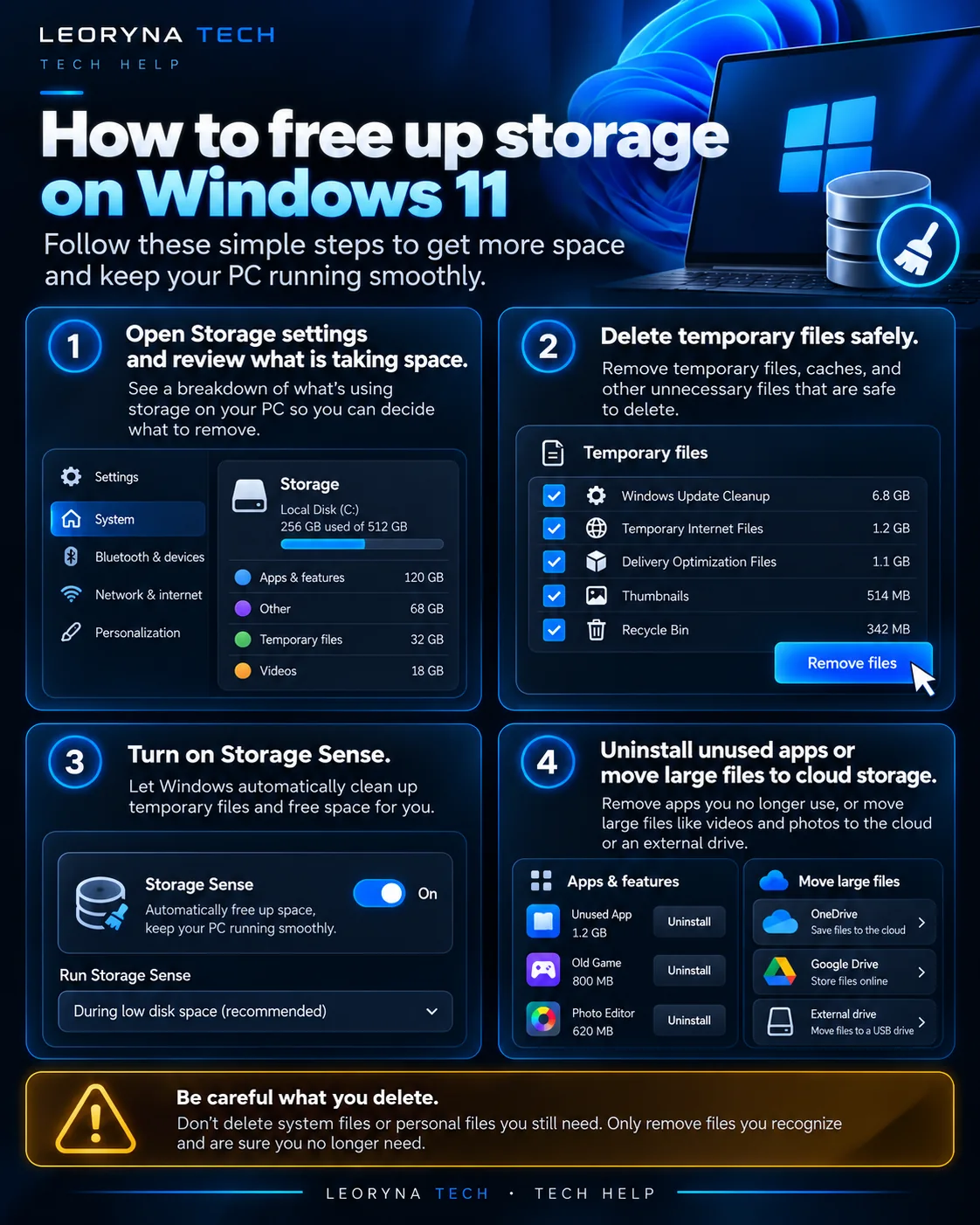 Tap to enlarge ↗
Try these fixes in order
Find what is using your space
Open Settings → System → Storage to see the major storage categories on your device. You can also open File Explorer → This PC to see how much space is available on each drive.
Look for large folders and apps before deleting anything. The drive containing Windows may need additional room for updates.
Review Cleanup recommendations
In Settings → System → Storage → Cleanup recommendations, Windows may offer temporary files, unused apps and other categories. Read each category carefully before selecting files for removal.
Some cleanup options may include files needed to roll back a recent Windows update. Removing those can eliminate your rollback option.
Consider Storage Sense
Windows includes Storage Sense, which can automatically remove certain temporary files and manage the Recycle Bin. Review its schedules and file-retention choices before enabling it.
Do not assume everything listed is disposable. Review downloads and cloud-synced files separately, because they may matter to you.
Move your own large files safely
Videos, downloads and old installers can take substantial space. Review them and move anything worth keeping to an external drive or a trusted backup location.
Open the new copy before removing the original. Confirm that your backup works, especially for photos, documents and projects.
Avoid risky shortcuts
Do not delete random folders inside C:\Windows, the registry, or files you cannot identify. Avoid “one-click PC cleaners” that promise dramatic improvements without explaining what they change.
If the drive fills again immediately or Windows cannot update after careful cleanup, consult the manufacturer or Microsoft’s recovery guidance rather than repeatedly deleting system files.
Frequently asked questions
Is it safe to empty the Recycle Bin?
Only after verifying that none of its contents are needed. Emptying it removes your usual opportunity to restore those files.
Should I delete Windows.old?
Only if you understand that it may remove the option to roll back a recent Windows version. Windows describes that consequence in Cleanup recommendations.
Official reference
This independent guide is informed by published manufacturer instructions. Menus may change with updates; consult the source for device-specific guidance.
Microsoft Support: Free up drive space in Windows ↗