Check the URL, connection, extensions and cached data without weakening your device’s security.
Before you start
- The address is typed correctly
- You have not ignored a browser security warning
- You can test another trusted website
 Tap to enlarge ↗
Try these fixes in order
Try the simplest checks first
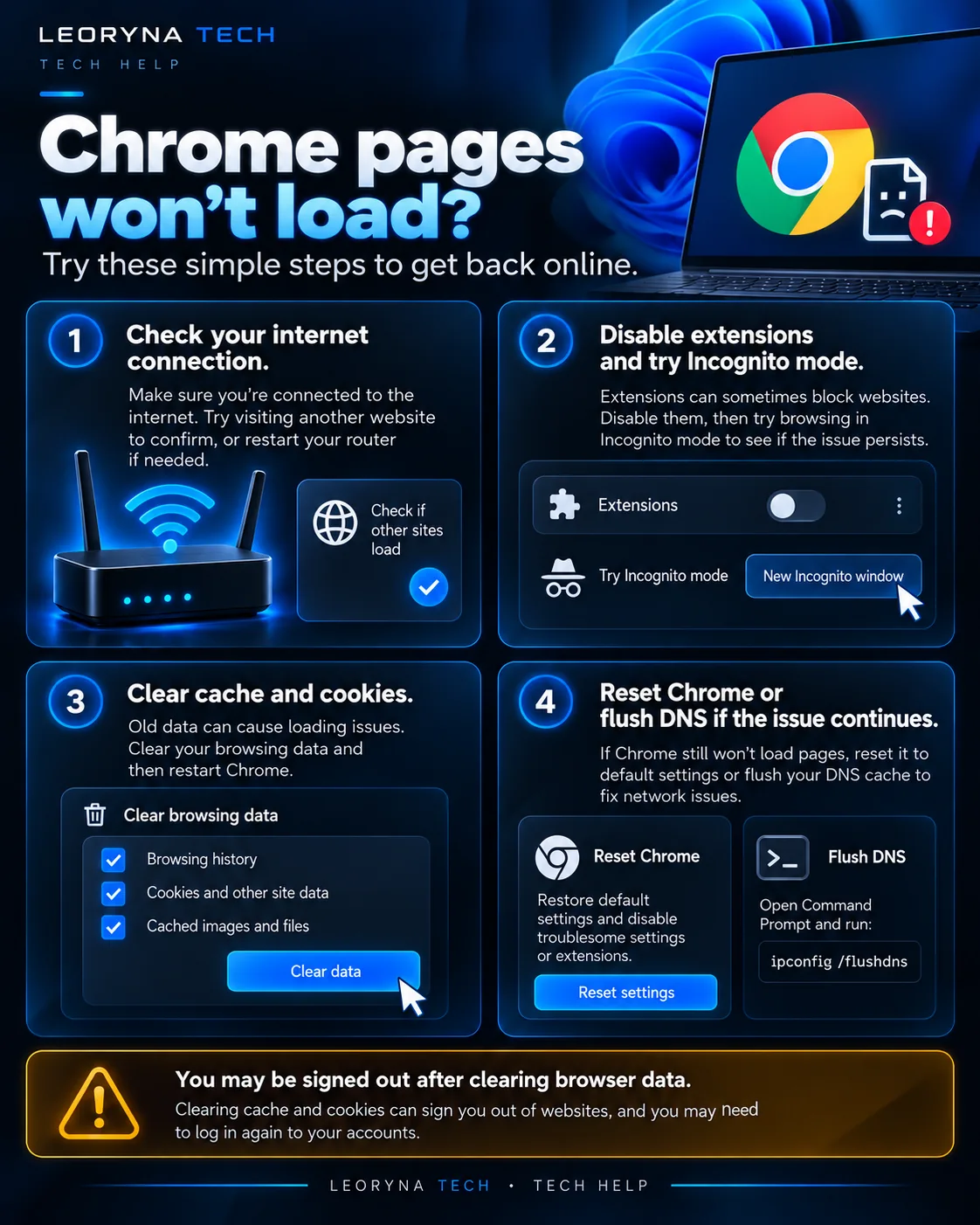
Reload the page once and verify the website address. Open another well-known website. If several websites fail, check your device’s internet connection; if only one fails, the server itself may be unavailable.
Restart the tab, browser and device
Close the affected tab and reopen it. Quit Chrome and launch it again. When Chrome has been running for a long time, a normal device restart can also help. Save unfinished work before closing tabs or restarting.
Check extensions individually
If websites work with extensions temporarily disabled, enable them one at a time to discover which is interfering. Remove extensions you no longer trust or use. Do not install suspicious “connection repair” extensions.
Clear only the data you mean to clear
In Chrome, open Settings → Privacy and security → Delete browsing data. Choose the correct time range and categories. Cached files may be safe to clear, but deleting cookies can sign you out of websites and removing saved data can be inconvenient.
Read the checkboxes instead of deleting everything indiscriminately.
Keep security protections active
If your firewall or antivirus is blocking a legitimate site, investigate the reason rather than permanently disabling security. Watch for warning pages about certificates or deceptive sites, and avoid bypassing those warnings just to make a page load.
If the problem persists, consult Google Chrome Help or the site’s own support team.
Frequently asked questions
Will clearing Chrome cache erase my saved passwords?
Clearing cached images and files is different from clearing passwords; carefully check the options you select before deleting browsing data.
Why does only one site fail to load?
The website may have a service problem, an invalid URL, a certificate issue or a setting specific to that site.
Official reference
This independent guide is informed by published manufacturer instructions. Menus may change with updates; consult the source for device-specific guidance.
Google Chrome Help: Fix connection and loading errors ↗