Troubleshoot a dark TV screen with working audio using safe input, cable and menu tests.
Before you start
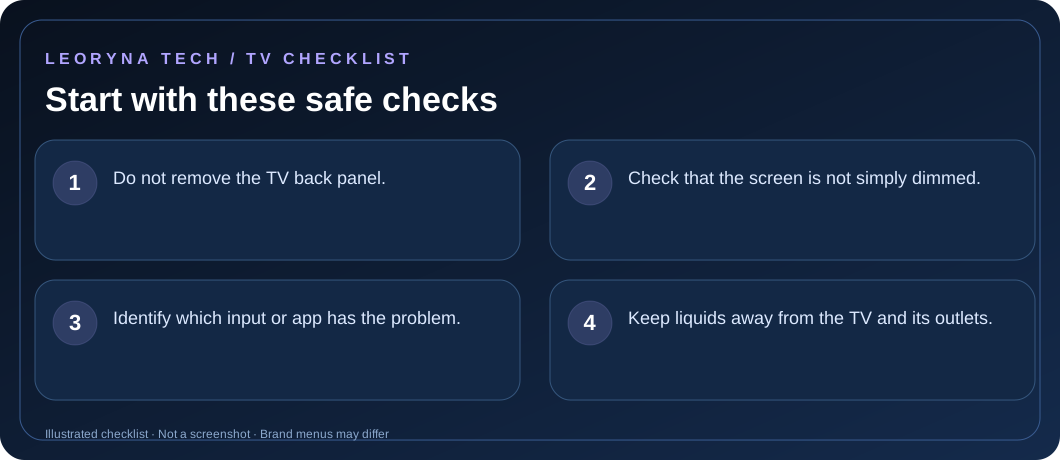
- Do not remove the TV back panel.
- Check that the screen is not simply dimmed.
- Identify which input or app has the problem.
- Keep liquids away from the TV and its outlets.
Try these fixes in order
Try the TV home or settings menu
Press Home or Settings on the TV remote. If the menu appears, the display can show an image, and the current app, source or connected device may be the problem. Menu buttons differ by brand.
Check the selected input and external device
If using a cable box, game console or streaming device, make sure it is powered on. Match the TV source (HDMI 1, HDMI 2 and so on) to the physical port being used.
Reseat HDMI connections safely
Turn off the external device first, then remove and reconnect its HDMI cable at both ends. Check for visible cable damage. Try a second working port or a known-good cable if available.
Check another app, input or built-in test
Open a built-in app or a different HDMI source if possible. Some TVs include a built-in picture test or self-diagnosis menu. Follow your model’s manual rather than guessing hidden settings.
Seek service if even the TV menu stays black
If you have sound but no image on any source, the TV may need professional service. Do not open it: televisions contain electrical components that can remain hazardous after unplugging.
Frequently asked questions
Does a black screen always mean a broken panel?
No. A disconnected HDMI source, wrong input or external device problem can also produce a black image.
Is it safe to open my TV to inspect a backlight?
No. Internal components can carry hazardous voltage. Use professional service for internal faults.
Official manufacturer reference
Based on publicly available support guidance. Steps and menus can vary by model, system version and country. This article is independent editorial guidance, not an authorized repair service.
Samsung Support — TV has no picture or black screen ↗