Use iPhone Storage recommendations, app offloading and verified backups to reclaim space safely.

Before you start
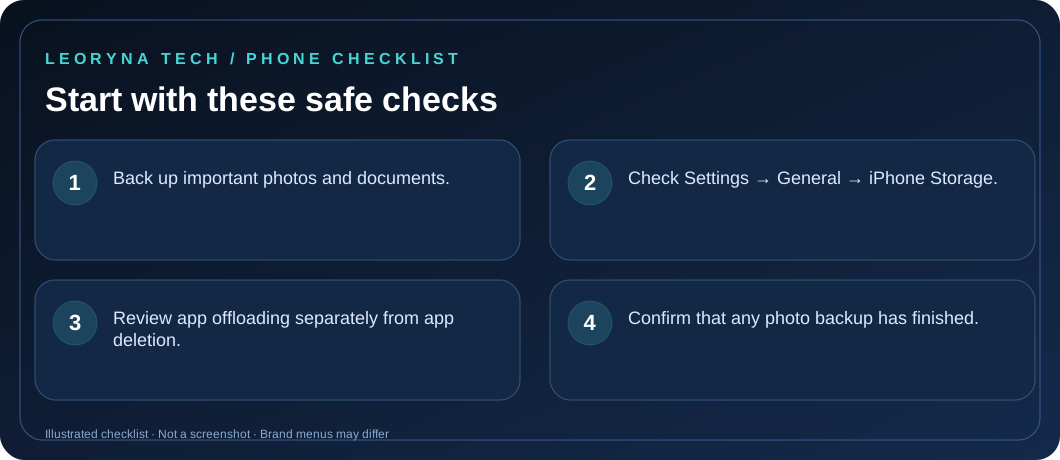
- Back up important photos and documents.
- Check Settings → General → iPhone Storage.
- Review app offloading separately from app deletion.
- Confirm that any photo backup has finished.
Try these fixes in order
See what is taking up the most storage
Open Settings → General → iPhone Storage. Wait for the category graph to load, then compare photos, apps, messages and media. Review Apple’s suggestions before enabling anything automatically.
Offload apps you rarely use
Offloading an app removes the application but retains associated documents and data; deleting an app removes both. These options are different. Use offloading when you may need the app’s saved information later, and confirm the app remains available for reinstalling.
Review large videos and downloads
Look for duplicate downloads, offline media and recordings you no longer need. If you keep media in a cloud service, verify that the originals are fully uploaded and accessible on another device before deleting local copies. Some cloud services synchronize deletions.
Understand photos and iCloud
iCloud storage and device storage are not the same. Turning on iCloud Photos does not necessarily make every photo disappear from local storage. If using Optimize iPhone Storage, review its behavior and ensure you can access your images with your Apple Account.
Avoid quick-cleaner claims and irreversible deletion
Do not install unknown “storage booster” tools or erase photo collections blindly. Restart and check the storage summary again. If storage remains unexpectedly full, consult Apple Support for your version of iOS.
Frequently asked questions
Does Offload App delete my documents?
Apple states that offloading retains documents and data, while deleting the app removes its related data.
Will removing photos from my iPhone also delete them from iCloud?
With synced photo libraries, deletions can propagate. Check your photo synchronization and backup setup before removing photos.
Official manufacturer reference
Based on publicly available support guidance. Steps and menus can vary by model, system version and country. This article is independent editorial guidance, not an authorized repair service.
Apple Support — how to check storage on iPhone and iPad ↗